Thursday, September 4, 2008
SQL Order By our specific order
Generally we can get the records in alphabetical or numeric order by default either in ascending or descending by specifying ORDER BY clause in the query. But sometimes in our applications, we may need to get the records in a specific order. For example, the order of names that we get from the database needs to be displayed in an order other than A to Z or Z to A. Here is the solution that i found.
Example:
Suppose that there is a query like below:
select * from emp where empname in ('B1','A1','C1')
You want the records to be displayed in the same order as above. Then change the query as below.
select * from emp
where empname in ('B1','A1','C1')
order by CASE empname
WHEN 'B1' THEN 1
WHEN 'A1' THEN 2
WHEN 'C1' THEN 3
END

Thursday, August 7, 2008
REPLICATE function
Repeats a string value a specified number of times.
Syntax:
REPLICATE ( string , integer)
string - what should be repeated or added
integer - how many times string value should be repeated
Example:
select REPLICATE('0',2)+[Product_Code] from Products
The above query will return the product code value with 2 zeroes added at the first.
If product code is PCT then the result will be 00PCT
Syntax:
REPLICATE ( string , integer)
string - what should be repeated or added
integer - how many times string value should be repeated
Example:
select REPLICATE('0',2)+[Product_Code] from Products
The above query will return the product code value with 2 zeroes added at the first.
If product code is PCT then the result will be 00PCT
Thursday, May 29, 2008
Import Data from excel file to MSSQL database
Steps to import data from excel to the database:
Step 1: Go to Sql Server Enterprise Manager > Right click on local database server > All Tasks > Import Data

Step 2: A screen appears like below. Click Next

Step 3: Select Microsoft Excel option in Data Source, Browse and select the file and clilck Next

Step 4: Select the destination database name and click Next
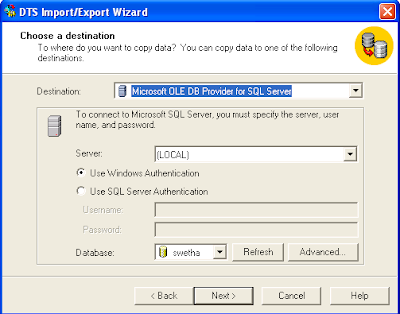
Step 5: Select the database using check box which is provided and click Next.
Note: This process will automatically create a new table if the table does not exists.

Step 6: A screen appears like below. Click Next.

Step 7: Check Run immediately (default). Click Next.

Step 8: An alert is given after succesfully copying the data. Click OK.

Step 9: Click Done

Step 10: Click Finish

Tags: Import Data from excel file to MSSQL database, Excel Data to Sql server database, Export Data from sql server to excel file
Step 1: Go to Sql Server Enterprise Manager > Right click on local database server > All Tasks > Import Data
Step 2: A screen appears like below. Click Next
Step 3: Select Microsoft Excel option in Data Source, Browse and select the file and clilck Next
Step 4: Select the destination database name and click Next
Step 5: Select the database using check box which is provided and click Next.
Note: This process will automatically create a new table if the table does not exists.
Step 6: A screen appears like below. Click Next.
Step 7: Check Run immediately (default). Click Next.
Step 8: An alert is given after succesfully copying the data. Click OK.
Step 9: Click Done
Step 10: Click Finish

Tags: Import Data from excel file to MSSQL database, Excel Data to Sql server database, Export Data from sql server to excel file
Subscribe to:
Comments (Atom)